
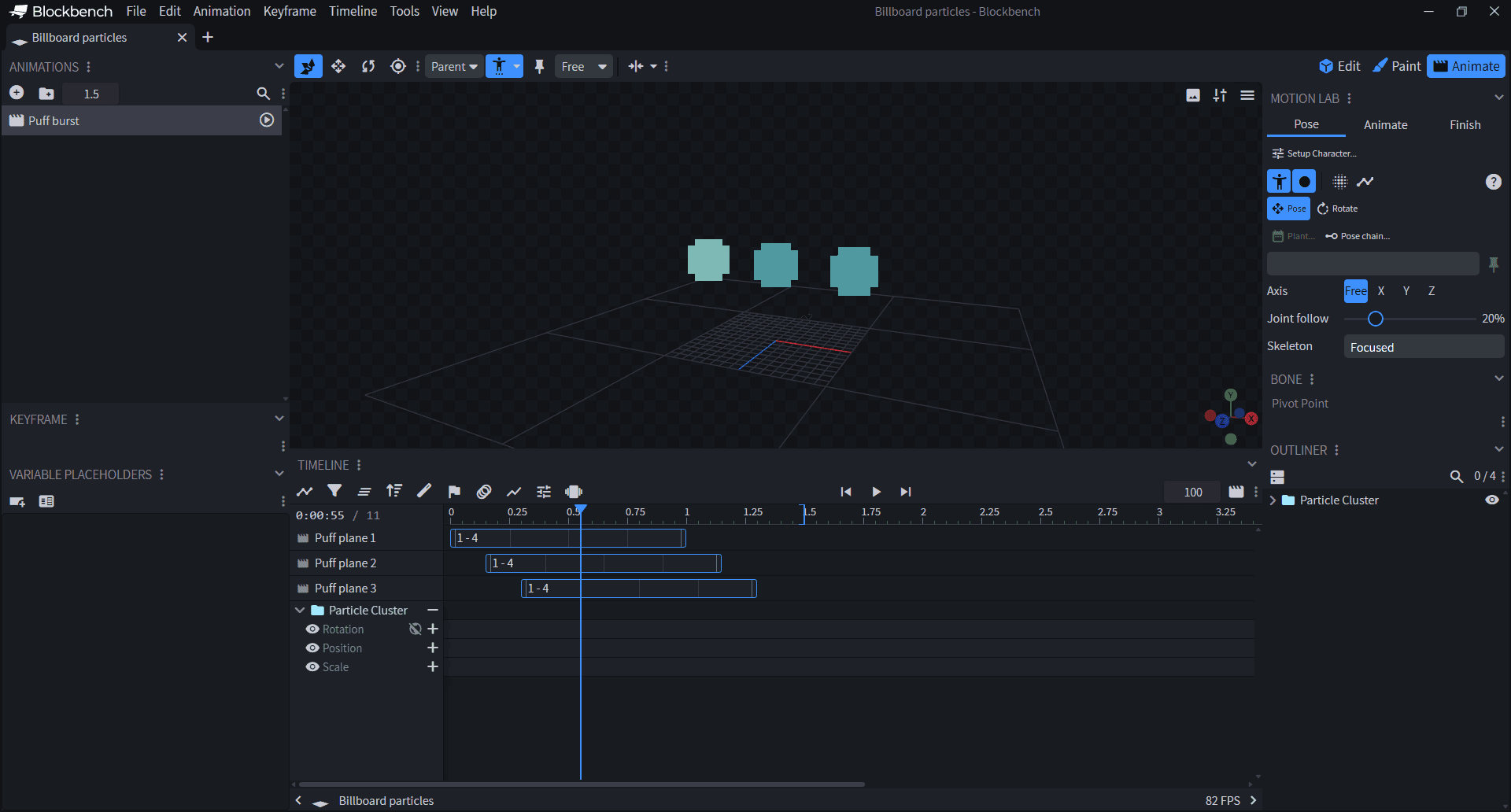
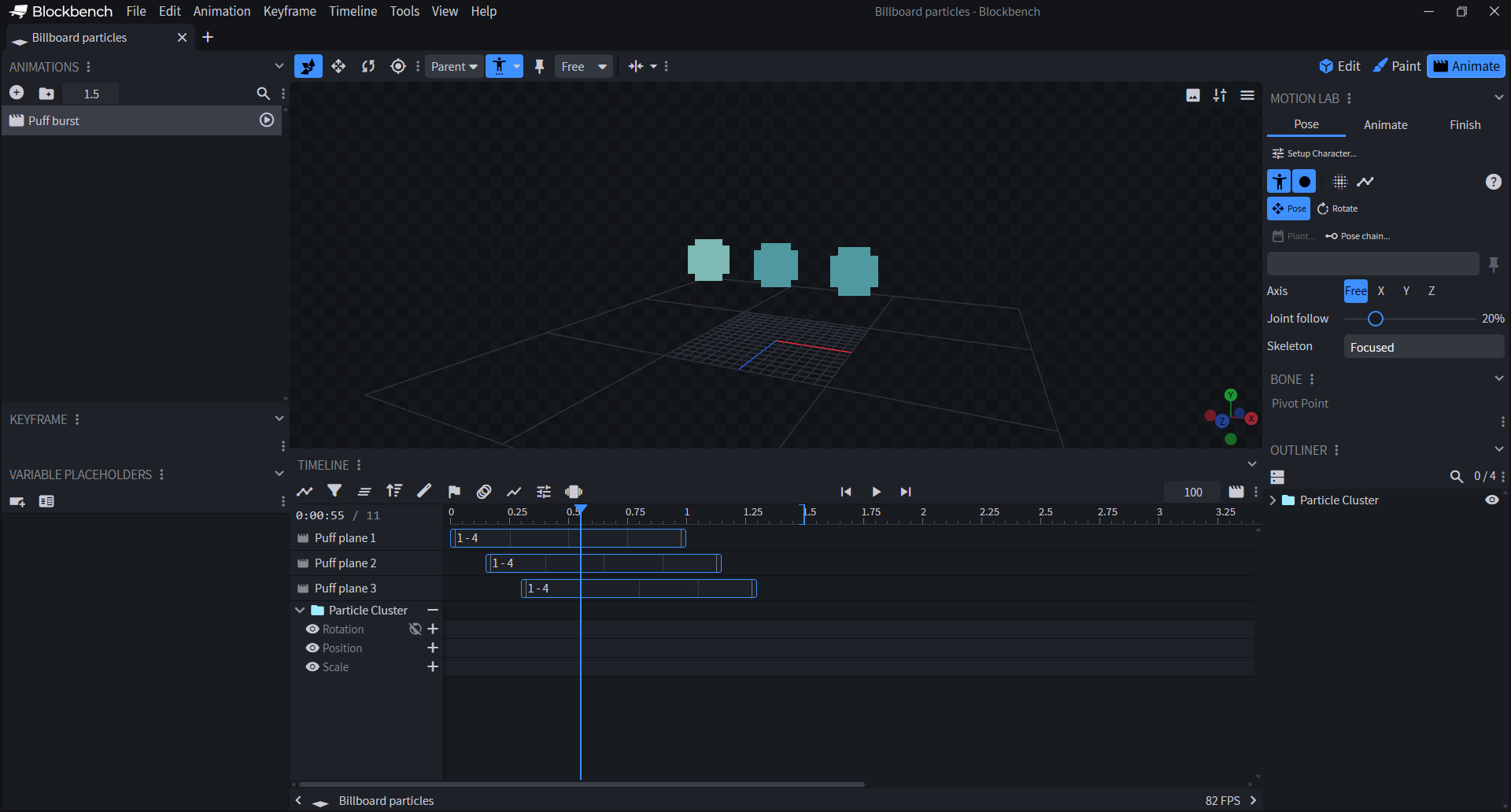
See the frame while you animate
In Animate, choose Animation > Add Texture Clip. Select a plane using a vertical flipbook sheet, choose its frame range, then scrub or play the timeline. Reverse the range, hold one frame, or loop at a fixed speed. Clips save with your model and support Undo/Redo.
Bake, then export normally
Animation > Bake Texture Clips converts the selected animation's clips into static frame parts and stepped scale keys. Other animations keep their editable clips and authored motion. Save an editable copy first, then use Blockbench's normal save or export commands.
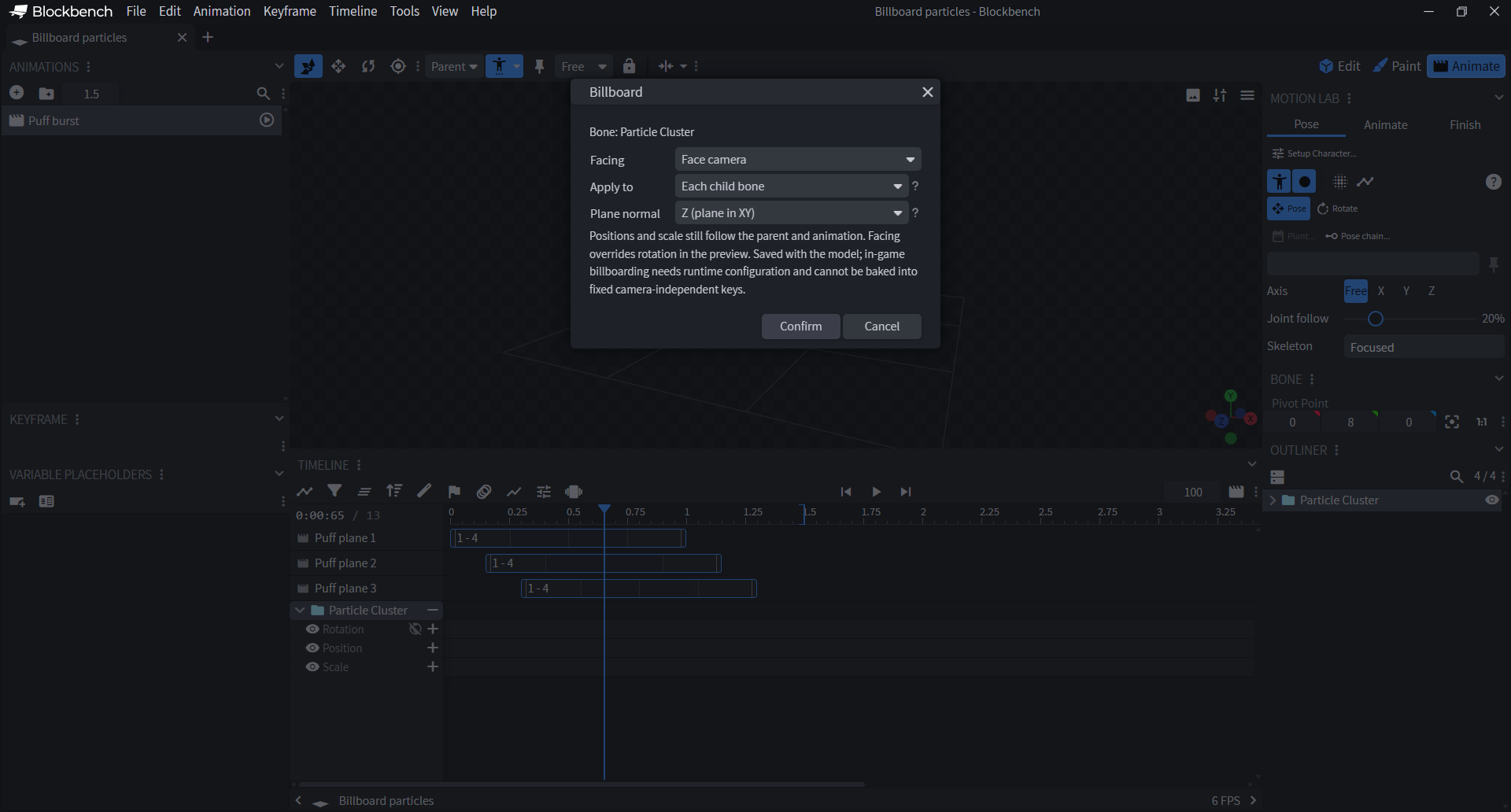
Right-click a bone and choose Billboard. Face the camera fully, turn left/right only, or tilt up/down only. Limited facing can use world or parent axes. Positions and scale still follow your hierarchy and animation.
Changes
- ~Drag and stretch flipbook clips directly in the animation timeline.
- ~Bake the selected animation's texture clips into ordinary frame parts and keys.
- ~Preview camera-facing bones, child bones or individual planes.