Handpainted Workflow
Available nowAmbient Occlusion
Geometry supplies the mask. Every material keeps its own shadow color family.
Bake local-color contact and enclosure shadows from visible cubes and meshes into an editable layer.
8 min read
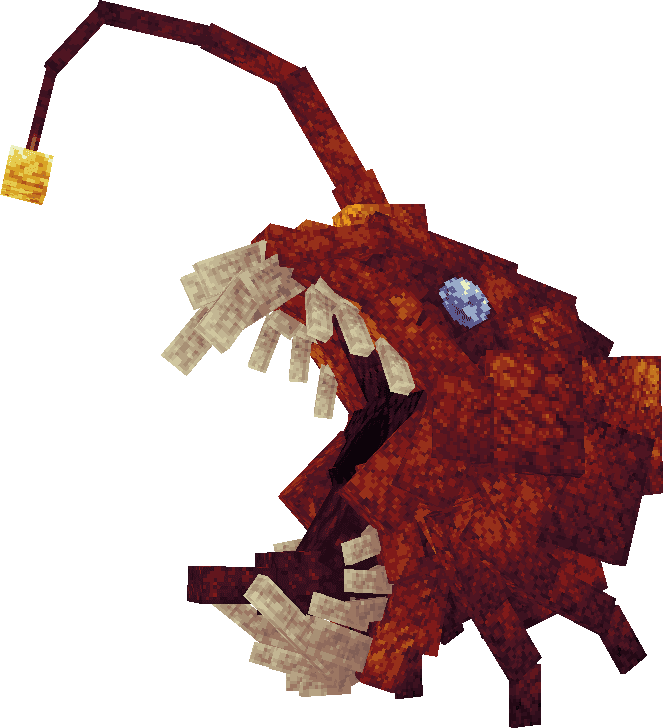
Plain
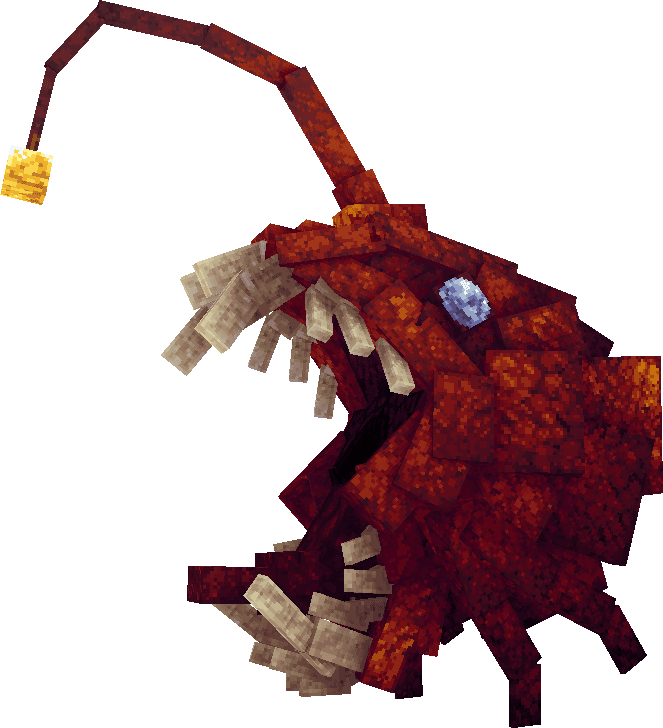
AO
01
Before baking
- Enter Paint mode and select the target texture.
- Make sure at least one visible cube or mesh face uses that texture.
- Keep all intended casting geometry visible and exportable.
- Finish any current Surface, Edge, lighting, gradient, or AO job first.
- For animated textures, use a whole-pixel frame height.
02
Bake the pass
- 1
Open AO
Choose the Bake Ambient Occlusion action from Blockbench's Image menu.
Image > Bake Ambient Occlusion
- 2
Choose a style
Smooth keeps a continuous response. Pixel Art quantizes the same mask into deliberate levels.
- 3
Choose temperature
Cool, Neutral, and Warm steer each source color toward a nearby shadow family instead of one universal tint.
- 4
Bake
AO creates a separate editable layer above existing Form Gradient output.
03
Adjust the strength
- Lower the native layer opacity for a subtler result.
- Duplicate the AO layer when the demo specifically asks for a stronger pass.
- Edit Generated Pass rebuilds the same layer with new settings.
- Detach Generated Pass to Pixels keeps the bitmap and removes its recipe.
04
Important boundaries
- Geometry using another texture can still cast AO, but output goes only to faces using the active texture.
- Transparent cutout geometry still casts as solid triangles.
- Overlapping UV faces share one atlas result.
- Large scenes can take time, but the job yields and can be cancelled safely.